
Self-Host Langflow: Your Own AI Agent Studio with One Docker Command
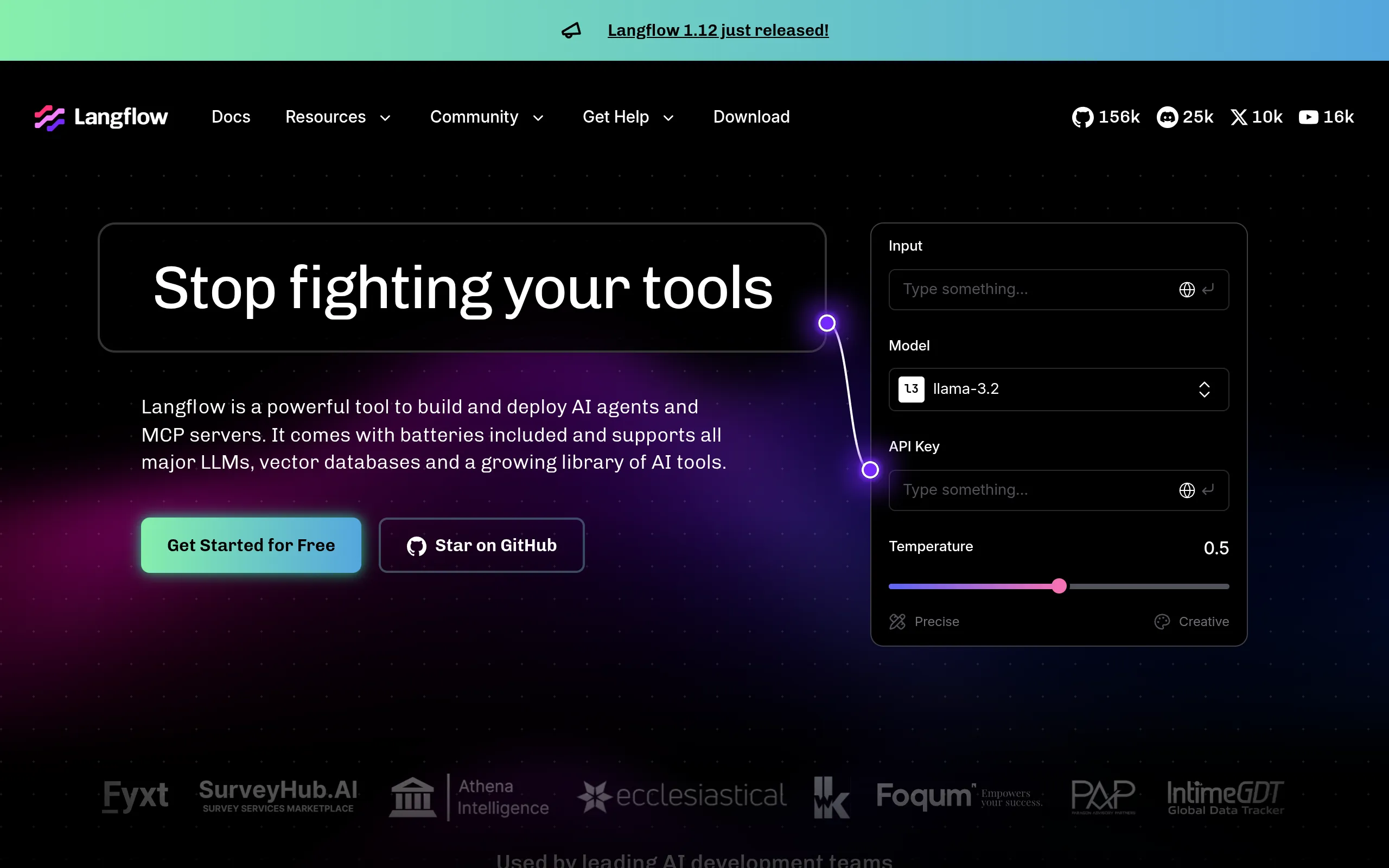
The visual workflow builder from the LangChain team is open-source, free, and has 156k GitHub stars. This guide takes you from a fresh VPS to a working flow with a real LLM call — all in your browser, no code required.
What Is Langflow?
Langflow is the visual agent and workflow builder from the LangChain team: drag components (chat input, language model, prompt template, chat output) onto a canvas, connect them, and you have a working AI app. Every flow can also be published as an API or an MCP server and embedded into your own website.
Why self-host it: it's open-source (MIT), your data stays on your own machine, and you deploy once and use it forever. The official homepage shows 156k GitHub stars:
Prerequisites
- A VPS: 2 vCPU / 4 GB RAM minimum (2 GB is the bare minimum, 4 GB is comfortable), 20 GB+ disk. Ubuntu/Debian recommended. Your own computer works too, but a VPS keeps it online around the clock.
- Docker on the VPS: install with the official one-liner
curl -fsSL https://get.docker.com | sh, then confirm withdocker --version. - An LLM API key: OpenAI by default (sign up at platform.openai.com, pay-as-you-go — a few cents for testing). The docs also support Anthropic, Google, Hugging Face, and other providers.
- Port 7860 open: allow it in your cloud firewall/security group — that's Langflow's default port.
Want to try it locally first? Langflow Desktop (one-click installers for Windows/macOS) exists too. This guide uses Docker so the setup is portable.
Step 1: Run Langflow with One Command
SSH into your VPS and paste the official Quickstart command from the docs (it sets up login credentials):
docker run -p 7860:7860 \
  -e LANGFLOW_AUTO_LOGIN=false \
  -e LANGFLOW_SUPERUSER_PASSWORD=your-strong-password \
  langflowai/langflow:latest
Notes:
- The official image is
langflowai/langflow, mapped to port7860— Langflow's default. LANGFLOW_AUTO_LOGIN=falseis now the default in official images after past security incidents. Don't flip it totrueon a public server.- Replace the password with your own strong one and remember it. The login username is
langflow.
After the container starts (the first pull takes a few minutes), open http://your-server-ip:7860 in a browser. If you see the login page, you're in.
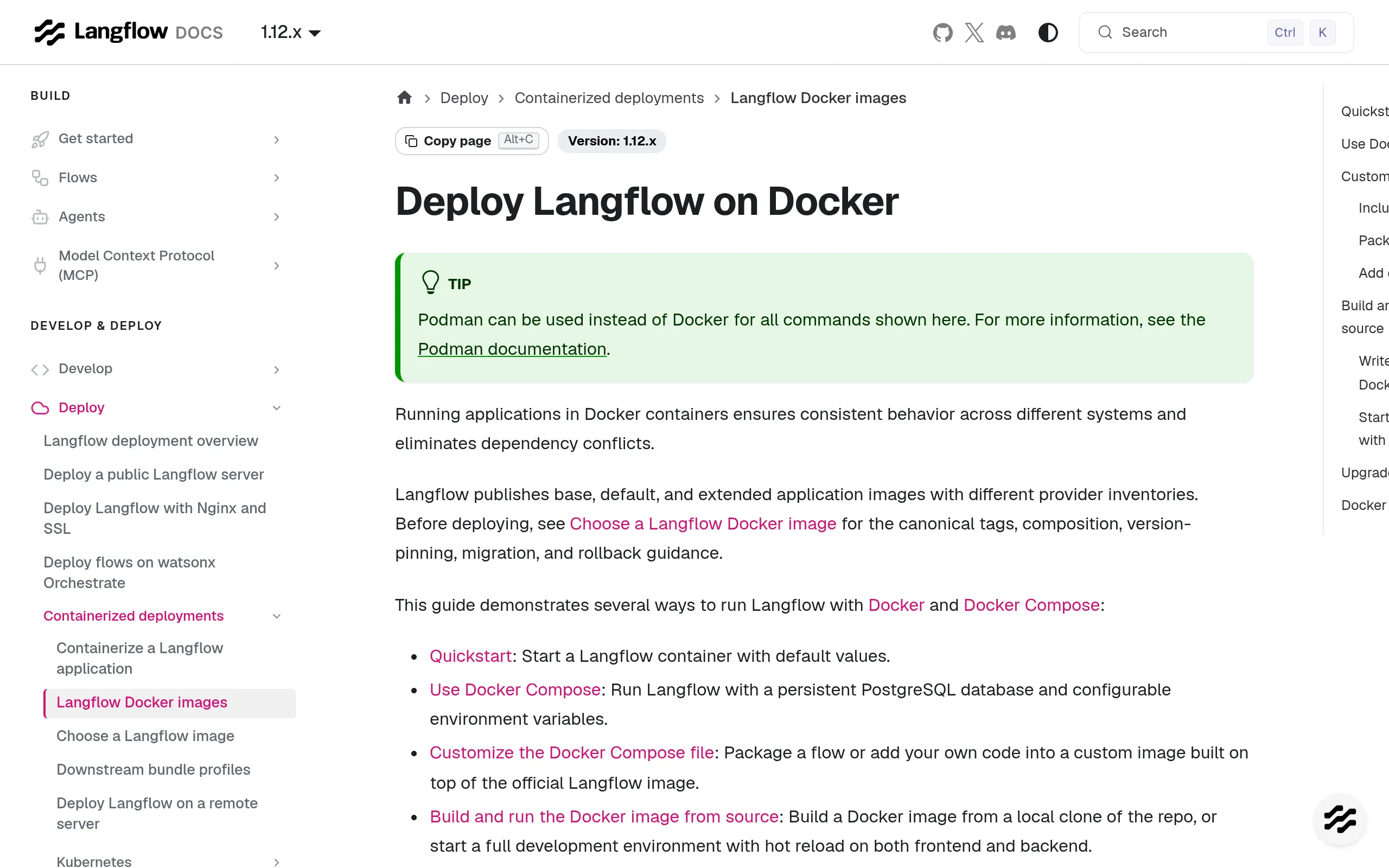
The official Docker deployment docs — copy the command from its Quickstart section:
Recommended setup for keeping it running
The command above runs in the foreground — it stops when you close the SSH session. For real use, run detached with a persistent volume and auto-restart:
docker run -d \
  --name langflow \
  -p 7860:7860 \
  -v langflow-data:/app/langflow \
  -e LANGFLOW_SUPERUSER_PASSWORD=your-strong-password \
  --restart unless-stopped \
  langflowai/langflow:latest
-v langflow-data:/app/langflowkeeps your flows and database in a Docker volume, so they survive container rebuilds. Skip this and one rebuild wipes everything.--restart unless-stoppedbrings Langflow back up after a VPS reboot.
Handy commands: docker logs -f langflow for logs, docker stop langflow / docker start langflow to stop/start.
Step 2: Run Your First Flow with a Real LLM Call
Everything from here happens in the browser — no code.
- Log in with username
langflowand your password. - Click New Flow and pick the Simple Agent template (the one the official Quickstart uses). For something even simpler, choose Basic Prompting — four components: Chat Input → Prompt Template → Language Model → Chat Output.
- Open the Language Model component (OpenAI by default) and paste your OpenAI API key into the API Key field. To switch providers, change Model Provider / Model Name.
- Click Playground in the top right and ask anything, e.g. "Hello". When the model's reply streams back — congratulations, your first flow with a real LLM call is running.
This mirrors the official Quickstart docs exactly: install Langflow, get an OpenAI API key, create a Langflow API key, then run the Simple Agent template flow:
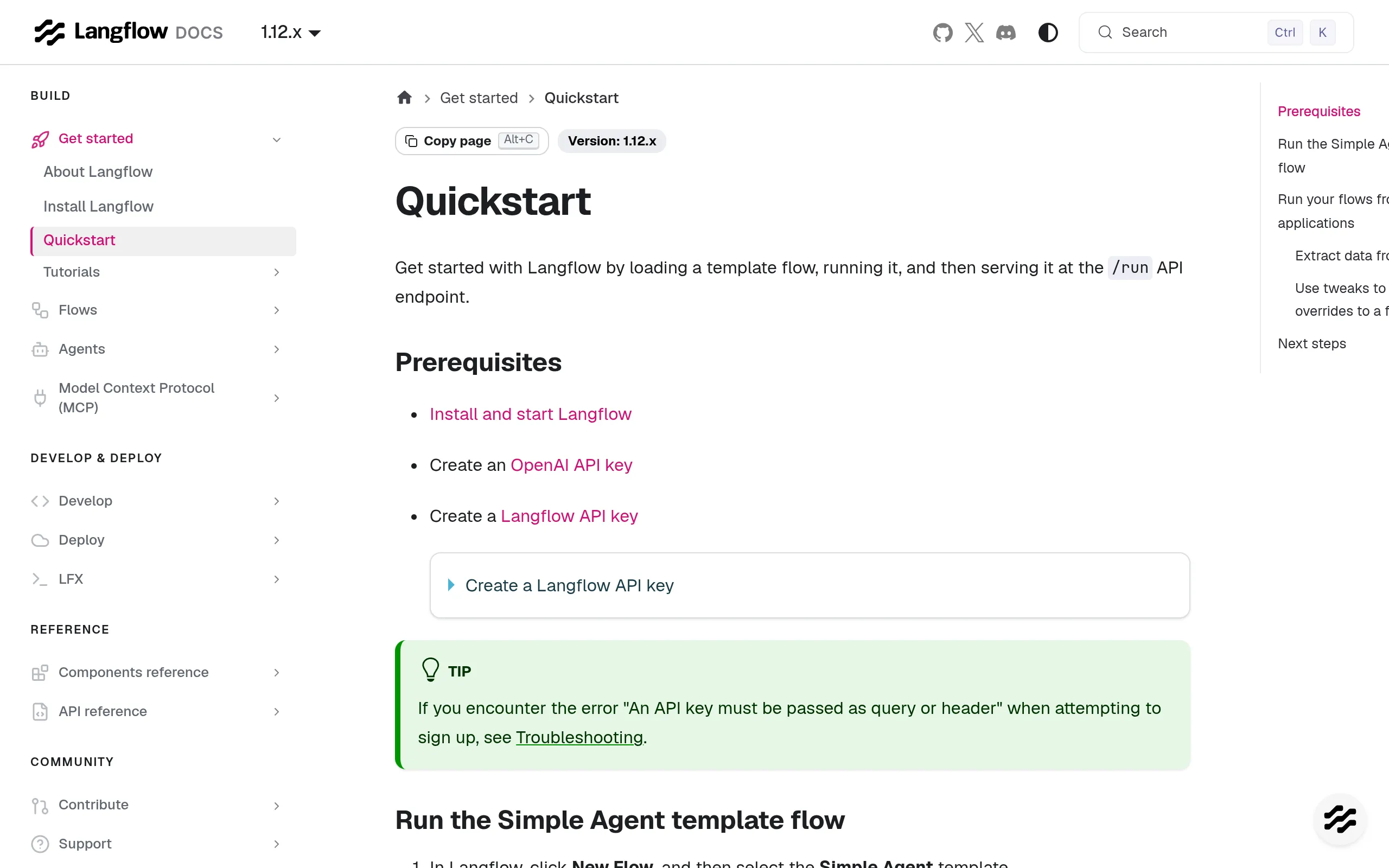
Note: this is a screenshot of the official docs — Microlink can't capture localhost pages, so the docs figure stands in. Your real UI at
http://server-ip:7860follows the same steps.
Step 3 (Optional): Turn the Flow into an API or Website Widget
A finished flow is more than a toy:
- Click the API button on the flow page to get its endpoint and flow ID — call it with POST requests plus your Langflow API key from your own apps.
- Click Share → Embed into site for a
<langflow-chat>web-component snippet that drops a chat widget into any HTML page.
Typical small-business uses: a 24/7 support widget on your store built from your FAQ and return policy; an internal "write my product descriptions" tool flow shared with your team.
Cost Breakdown
| Item | Cost |
|---|---|
| Langflow software | Free (open-source, MIT) |
| VPS (2 vCPU / 4 GB) | From ~$5/month depending on provider |
| OpenAI API calls | Pay-as-you-go; cents to a few dollars for testing |
| DataStax managed Langflow | Announced as free in the official blog (current signup availability unverified — see below) |
Don't want to maintain a server? DataStax offers a managed Langflow cloud — the Langflow 1.0 launch blog stated "DataStax Langflow is free to use." That announcement is from the 1.0 era, and DataStax has since been acquired by IBM, so whether free signups are still open is unverified — check the official site before relying on it.
Gotchas and Pitfalls (Read Before You Start)
- Don't run an old version. Langflow before 1.9.0 had a remote-code-execution vulnerability that was actively exploited at scale on the public internet (one security write-up counted 1,400+ blocked attack attempts in a single month). Use
:latest— the docs were at 1.12.x when this was written — not a pinned old version from some outdated tutorial. - Password-protect any public deployment. The
LANGFLOW_AUTO_LOGIN=falsedefault exists for a reason: anyone who can reach your port 7860 can run code on your server. Use a strong password, and for production put Nginx + HTTPS in front. - Mount the data volume. Without
-v, one container rebuild wipes your flows and accounts. - No input box in the Playground? You almost certainly forgot the Chat Input component, or it isn't connected to the Language Model. Check the chain: Chat Input → model → Chat Output.
- "Invalid API key" errors: re-check the key inside the Language Model component; better yet, store keys in Global Variables once and reference them everywhere instead of hand-typing per component.
- Network: pulling the Docker image and calling the OpenAI API both need unrestricted outbound internet — a non-issue on an overseas VPS.
Sources
- Langflow official site: https://www.langflow.org
- Official Docker deployment docs (source of the commands): https://docs.langflow.org/deployment-docker
- Official Quickstart (source of the first-flow steps): https://docs.langflow.org/get-started-quickstart
- GitHub repo langflow-ai/langflow (README with Docker command and login notes): https://github.com/langflow-ai/langflow
- DataStax managed free-tier announcement (Langflow 1.0 launch blog): https://www.langflow.org/blog/langflow-1-0-is-out-with-a-cloud-service/
- Hands-on Chinese tutorial "Langflow 上手指南" (Basic Prompting steps, troubleshooting checklist): https://blog.csdn.net/gitblog_00321/article/details/152435536
- Self-hosting with remote access guide (Docker command, requirements): https://pinggy.io/blog/self_host_langflow_and_access_remotely/
- Production deployment walkthrough (PostgreSQL + Traefik + HTTPS): https://dev.to/vultr/deploying-langflow-an-open-source-visual-framework-for-building-ai-applications-19ol
- Security alert "1,423 Hack Attempts in Under a Month: The Langflow Lockdown Checklist": http://dev.to/jamilxt/1423-hack-attempts-in-under-a-month-the-langflow-lockdown-checklist-5g64
Screenshots are of public official pages; the localhost UI couldn't be captured remotely, so docs figures stand in where noted. Commands and ports verified against the official docs on 2026-10-22.