
Your Site Went Down at 3 AM and Nobody Told You? Add Free Downtime Alerts in 5 Minutes with UptimeRobot
One-line takeaway: UptimeRobot's free tier gives you 50 monitors, checks every 5 minutes, and free email alerts — signup to first alert genuinely takes about 5 minutes. But since December 2024 the free plan is personal, non-commercial use only, so don't put a revenue-generating store on it. This walkthrough covers the real limits plus the three-step setup.
The bottom line: what's great and where it bites
UptimeRobot has been doing website monitoring since 2010 and claims 3.4M+ users. Here's the free plan's actual spec, verified against the official pricing page on 2026-10-23:
- 50 monitors, $0/month, no credit card required to sign up
- Check interval fixed at 5 minutes — not adjustable on free
- Monitor types: HTTP(s), ping, port, keyword, API, UDP, DNS, plus SSL/domain-expiry monitoring
- Alert channels: email is free (your signup address works out of the box); mobile app push is free (install the official app and log in); SMS/voice calls need separately purchased credits — none included on free; no Telegram, Slack, or webhooks on free — the free tier only gets 5 basic integrations (Google Chat, Discord, Pushover, Pushbullet, Splunk)
- Logs kept for 3 months; one basic status page
And the big one most people missed: effective December 1, 2024, UptimeRobot changed its Terms of Service so the free plan is personal, non-commercial use only. The pricing page now positions free as "Good for hobby and non-profit projects." Your blog, test sites, portfolio — fine. A store that's taking money, or a client's site — a ToS violation, with account suspension as the stated consequence. Multiple 2026 third-party write-ups (dev.to, notifier.so, UpCanary's comparison page) confirm this; open-source, educational, and nonprofit projects are exempt.
On track record, to be fair: UptimeRobot itself has been running since 2010 with no sudden-shutdown history — it's the old reliable of free monitoring. But that December 2024 ToS tightening is exactly the kind of "free tier quietly gets stricter" move to keep in mind; rules on free things change. A cautionary tale from the same space: competitor Freshping shut down in March 2026 and deleted user data.
What you need before you start
- An email address — for signup, and it's your default alert destination. Gmail, Outlook, anything works.
- Your website's URL — the one you want watched, e.g.
https://yourdomain.com. If you have an API health endpoint (like/health), have that handy too — explained below. - The UptimeRobot mobile app (optional but recommended): free push alerts, faster than email. iOS and Android, log in with the same account.
Cost: $0 end to end. The only thing that costs money is SMS/voice alerts (no credits included on free; sold separately as a one-time purchase).
Step 1: Sign up and verify your email
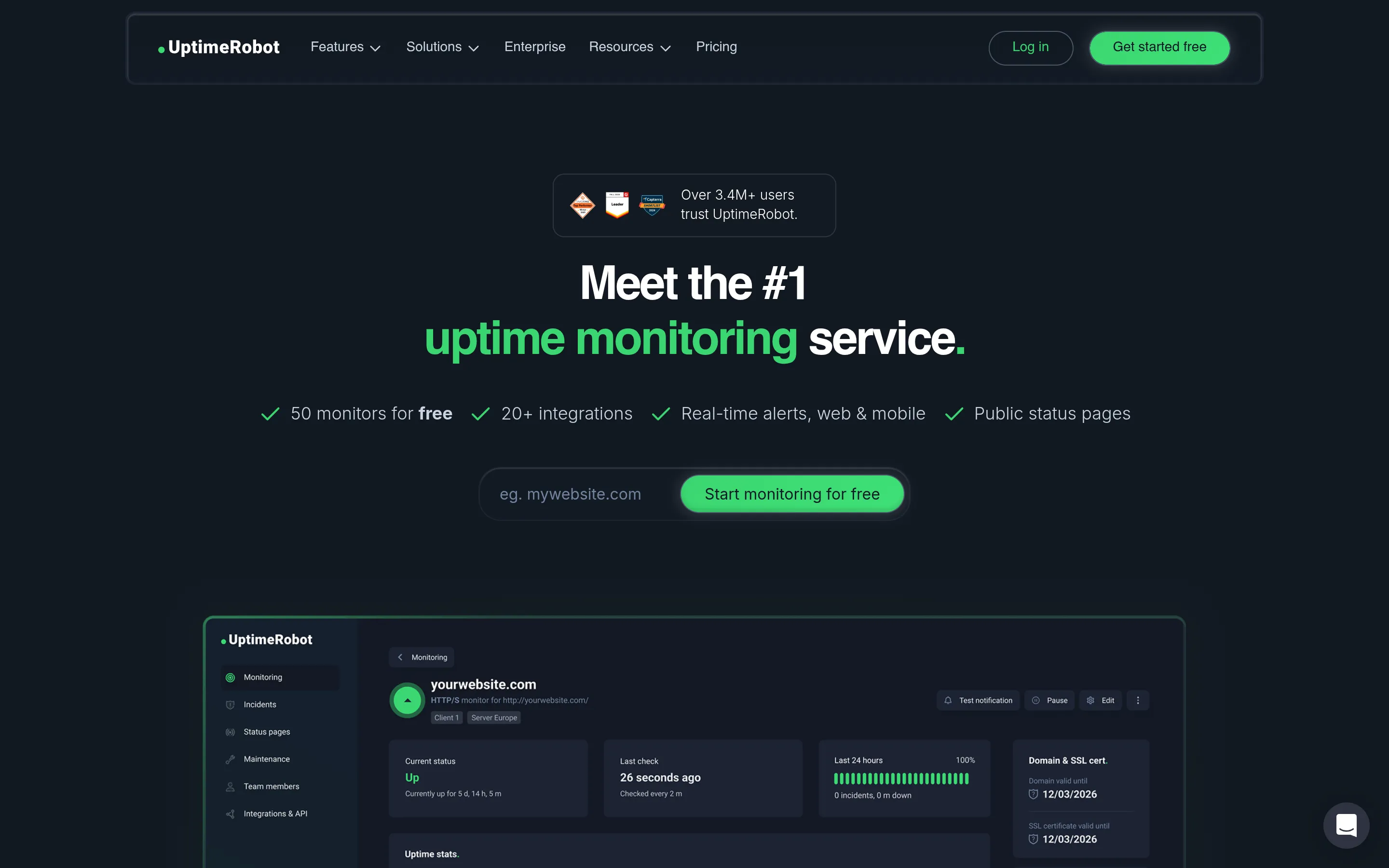
Go to uptimerobot.com — the homepage states "50 monitors for free" right up front. Hit "Start monitoring for free":
Enter your email, set a password, then click the verification link in your inbox — skip that and your alert emails may never arrive. Entirely online, no card, about 2 minutes.
Step 2: Add your first monitor (this is the whole job, really)
Log in to the dashboard and click Add New Monitor, then fill in:
- Monitor Type: HTTP(s) — the standard "is my site alive" check
- Friendly Name: something you'll recognize later, e.g.
Blog homepage - URL (or IP):
https://yourdomain.com/ - Monitoring Interval: free only offers 5 minutes, no decision needed
- Alert Contacts To Notify: tick your email
Hit Create Monitor. Done. The first check completes within 5 minutes and you'll see a green Up status in the panel.
The slightly smarter setup (recommended): add a second monitor of type HTTP(s) pointed at your API health endpoint (e.g. https://yourdomain.com/api/health). Homepage down + API up means the problem is in the frontend/CDN/DNS layer; both down together usually means the server or network layer. Two monitors cross-referencing each other makes debugging twice as fast — and you've still got 48 slots left for blogs, landing pages, and APIs.
A third one worth enabling: domain-expiry monitoring. The free tier includes an SSL & domain-expiry monitor. The dumbest outage in the indie world is letting a domain expire unrenewed and 404ing everything — let the robot remember for you.
Gotcha: checks run every 5 minutes, so in the worst case you're learning about an outage 4 minutes 59 seconds late (a 2026 dev.to field analysis did the math: a 299-second worst-case detection gap). Totally fine for a personal blog; inherently not enough for anything latency-sensitive like a checkout flow.
Step 3: Set up alert channels that will actually wake you
Email alerts are on by default, but email can land in spam or sit unread at 3 AM. Per UptimeRobot's official help doc (the Personal Notification Channels – Setup Guide, updated 2026-07-31), the reliable free-tier combo is email + app push:
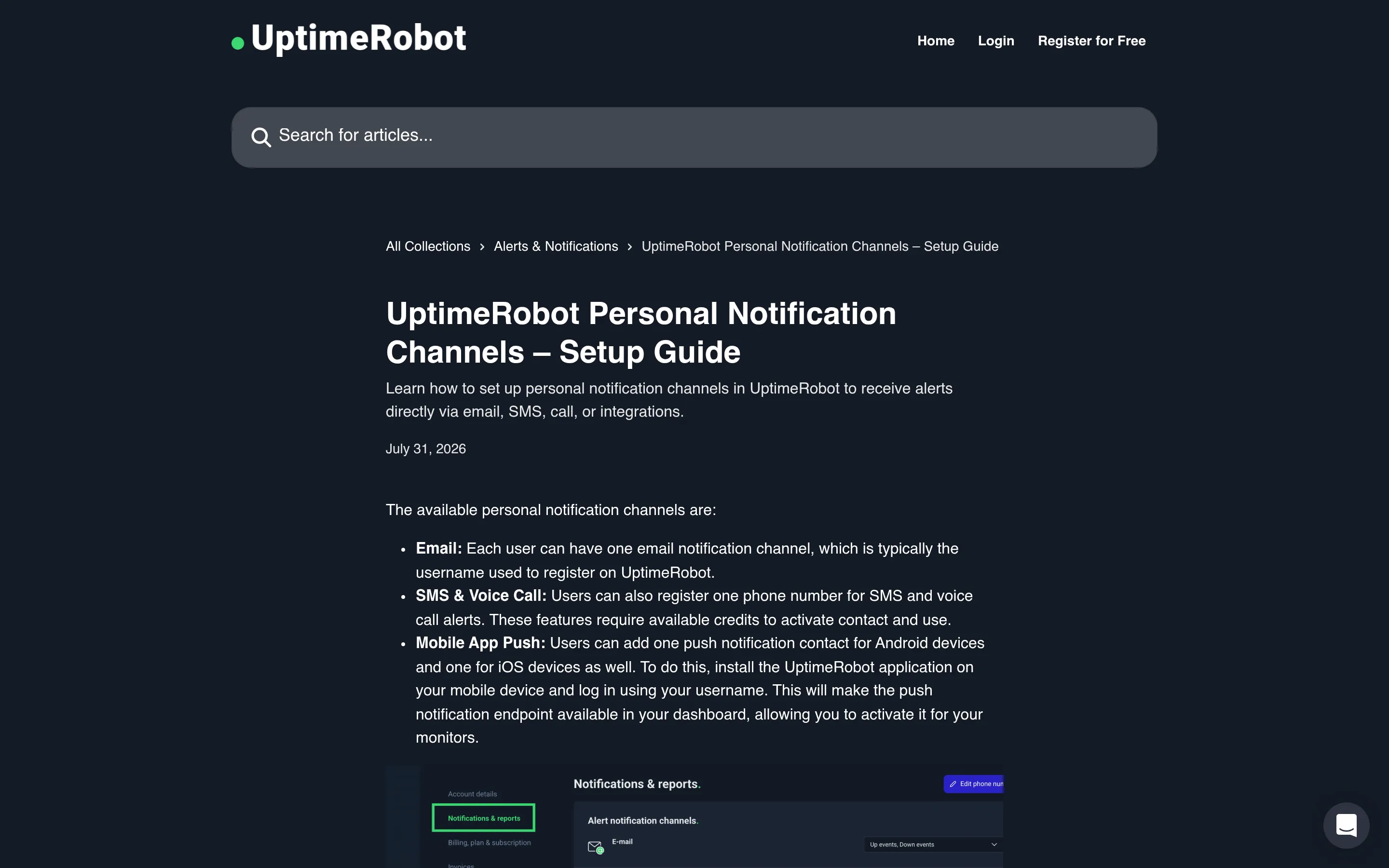
- Email: every user gets one email channel by default — your signup address. Nothing to configure. Want a second email address? Not on free — extra contacts require a paid plan seat.
- App push: install the official UptimeRobot app, log in with the same account, and a push channel appears in your dashboard. Attach it to your monitors. This is the fastest free alert path — turn it on.
- SMS / voice calls: no credits included on free; sold separately as a one-time purchase, not a subscription. If you want a phone call to wake you at night, that's the one thing you'll pay for — check the official FAQ for current credit pricing (a third-party review cited roughly $3 per 10 SMS credits; not verified on the official site).
- Discord notifications: Discord is among the 5 free basic integrations. Pipe alerts into your own Discord channel and your phone buzzes — a decent workaround for "no Telegram/Slack on free."
After wiring it up, hit Test notification next to a monitor and confirm every channel actually delivers before trusting it in production.
Costs, limits, and gotchas — cheat sheet
| Item | Status |
|---|---|
| Signup + 50 monitors | $0/month, no card required |
| Check interval | Fixed 5 min on free (not adjustable); Solo 60s / Team 30s / Scale 15s |
| Email alerts | Free; signup address works by default |
| App push alerts | Free; requires the official app + login |
| SMS / voice alerts | No credits on free; sold separately (one-time purchase) |
| Telegram / Slack / Webhook | Not on free; Telegram, Slack, MS Teams need Solo and up; Webhook, Zapier, PagerDuty need Team and up |
| Free integrations | Only 5 basics: Google Chat, Discord, Pushover, Pushbullet, Splunk |
| Log retention | 3 months (Solo 12 months, Team/Scale 24 months) |
| Status page | 1 basic page (no custom domain) |
| Allowed use | Personal, non-commercial only (ToS since 2024-12-01); open-source/education/nonprofit exempt |
| Risk | Monitoring a revenue site or client work on free = ToS violation, suspension risk |
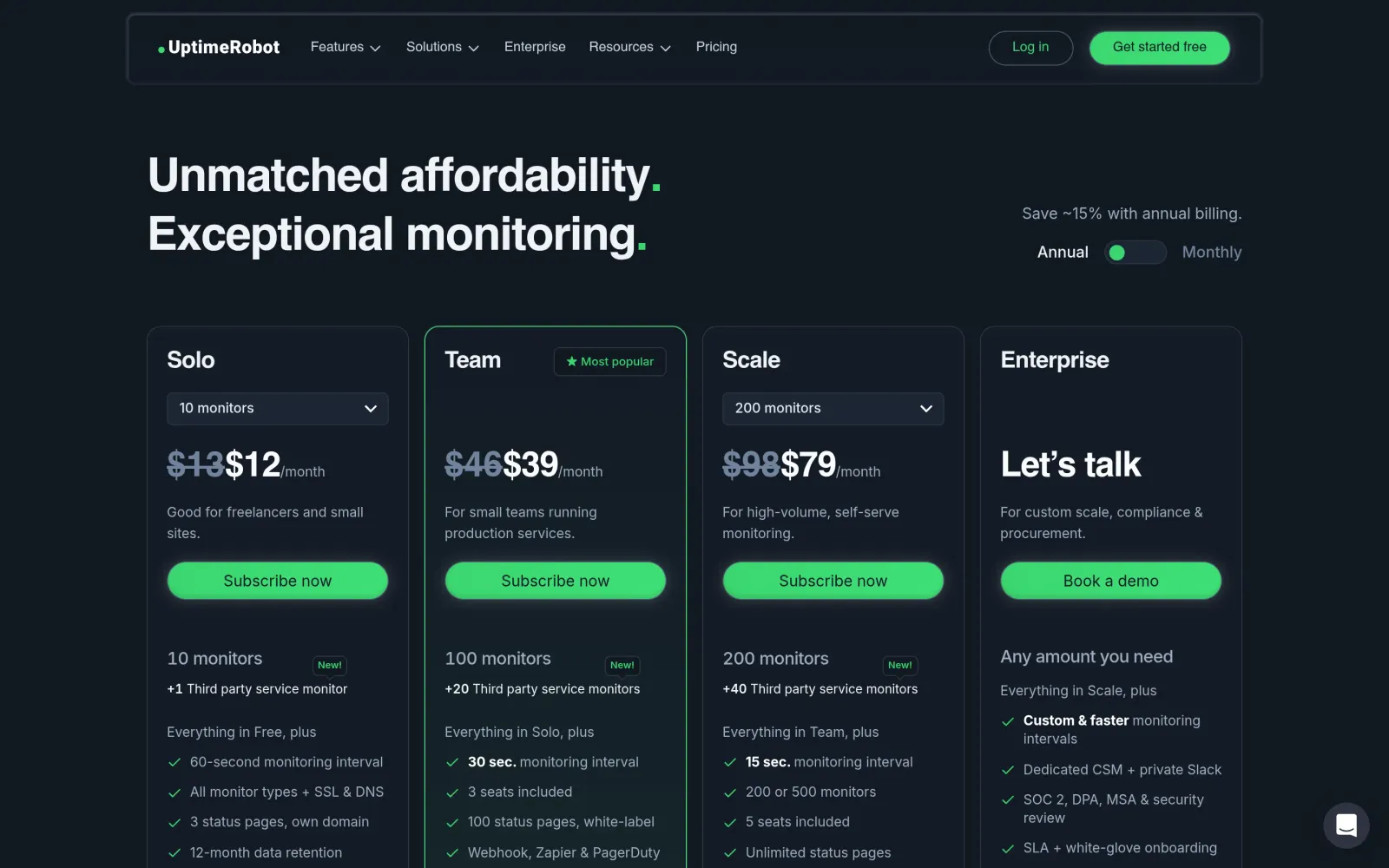
Paid tiers for reference (official pricing page, 2026-10-23): Solo $13/mo ($12/mo annual) with 10 monitors; Team $46/mo ($39/mo annual) with 100 monitors; Scale $98/mo ($79/mo annual) with 200 monitors. Note the quirk: Solo actually gives you fewer monitors than free (10 vs 50) — you're paying for faster checks and more features, not more monitors.
Sources
- UptimeRobot official pricing page (free tier: 50 monitors / 5-min interval / alert channels / paid tier prices, verified 2026-10-23): https://uptimerobot.com/pricing
- UptimeRobot homepage: https://uptimerobot.com
- UptimeRobot official help doc, "Personal Notification Channels – Setup Guide" (updated 2026-07-31): https://help.uptimerobot.com/en/articles/11360953-uptimerobot-personal-notification-channels-setup-guide
- UptimeRobot official FAQ: https://uptimerobot.com/faq/?ref=footer
- dev.to (r0tten0x), "UptimeRobot Free Plan in 2026: The Limits That'll Actually Bite You" (updated May 2026: non-commercial restriction, 299-second detection gap): https://dev.to/r0tten0x/uptimerobot-free-plan-in-2026-the-limits-thatll-actually-bite-you-445g
- notifier.so, "UptimeRobot vs Pingdom: Which Monitoring Tool Is Worth Your Money in 2026" (free-tier alert channels, SMS credit notes): http://notifier.so/guides/uptimerobot-vs-pingdom/
- notifier.so, "Uptime Kuma vs UptimeRobot: Self-Hosted or Cloud Monitoring?" (free-tier limits, Freshping shutdown Mar 2026): http://notifier.so/guides/uptime-kuma-vs-uptimerobot/
- whatap.io, "UptimeRobot vs. cron+curl vs. Free URL Monitoring" (Aug 2026: free integration and region limits): https://url.whatap.io/blog/best-free-uptime-monitoring
- loadster.com, "UptimeRobot Alternatives with Transaction Checks (2026)" (pricing and monitor-type reference): https://loadster.com/compare/uptimerobot-alternatives/
- upcanary.io, "UpCanary vs UptimeRobot" (Dec 1, 2024 ToS change notes): https://upcanary.io/compare/uptimerobot
- designmodo, "7 Best Uptime Robot Alternatives to Leverage in 2026" (Dec 19, 2025: ToS change background): https://designmodo.com/uptimerobot-alternatives/
- DigitalOcean Ideas, "How to Use UptimeRobot for Cron Job Monitoring" (heartbeat monitors for cron jobs): https://ideas.Digitalocean.com/network/p/how-to-use-uptimerobot-for-cron-job-monitoring
(Podcast note: I also searched Chinese outbound/indie-dev podcasts on Xiaoyuzhou, Apple Podcasts, and Spotify for episodes about uptime monitoring or UptimeRobot — none found, so no podcast citation.)