
Free Custom-Domain Email Forwarding with ImprovMX: Receive Mail at Your Domain in 5 Minutes
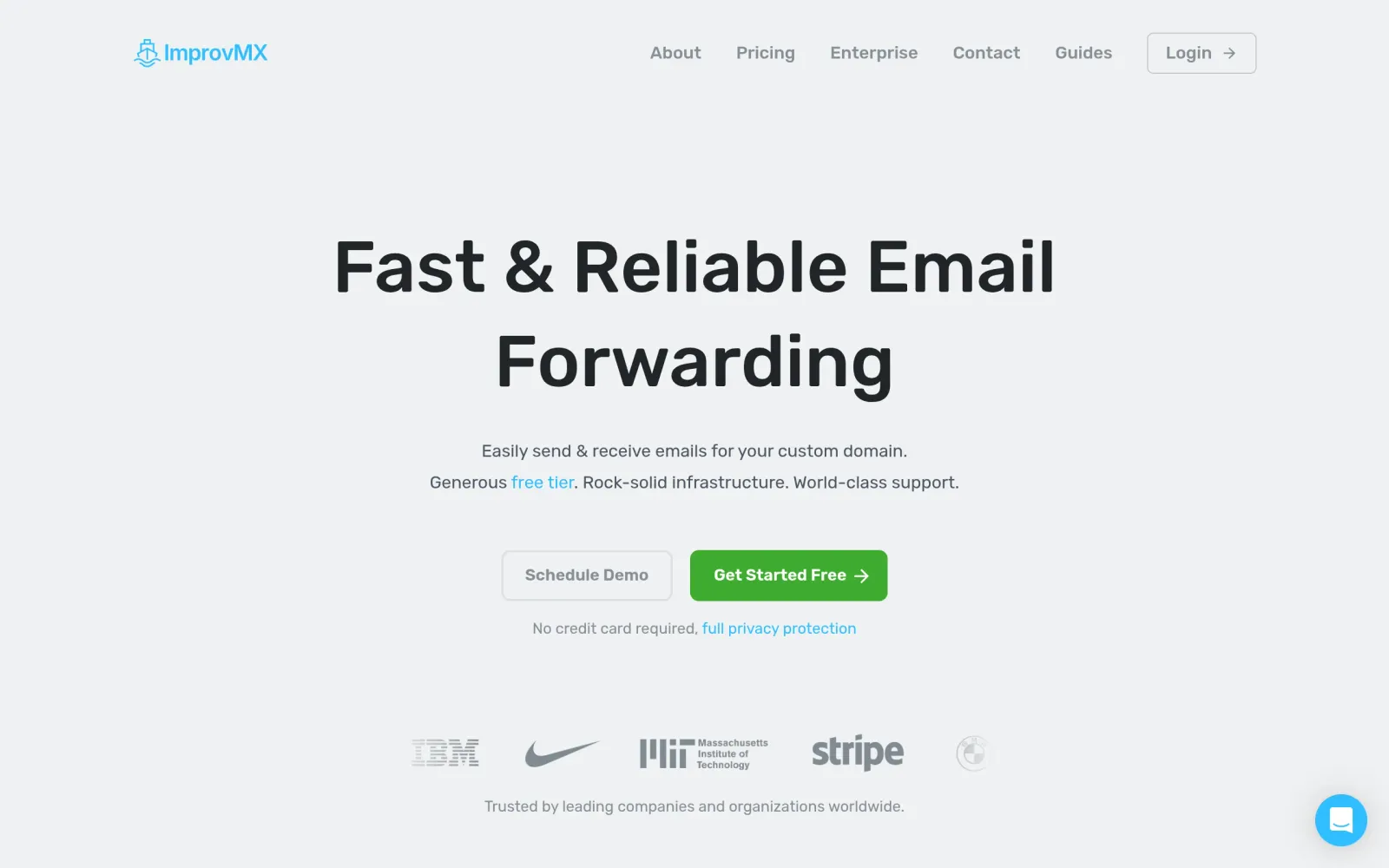
One-line pitch: Own a domain but don't want to pay for business email? ImprovMX's free tier forwards everything sent to addresses like info@yourdomain.com straight to your Gmail — 1 domain, 25 aliases, 500 forwards a day, and all it takes is two DNS records.
What You Need
- A domain you own (any TLD; DNS can stay with any registrar — that's the key difference from Cloudflare Email Routing, which forces you to move DNS to Cloudflare).
- An existing inbox (Gmail, Outlook, or anything else) to receive the forwarded mail.
- Access to your domain's DNS panel (Namecheap, GoDaddy, Cloudflare, Porkbun, etc.).
- Not needed: no credit card, no phone verification. Fully online, about 5–10 minutes.
Correction worth knowing: some older blog posts claim ImprovMX's free tier covers "unlimited domains." That's outdated. Verified on the official pricing page on 2026-10-24: the free tier covers exactly 1 domain. Alternatives for multiple domains are listed at the end.
Step by Step
Step 1: Enter your domain and destination email on ImprovMX
Open improvmx.com. Right on the homepage there's a simple form with two fields: Your domain name (e.g. yourdomain.com) and Your email address (where mail should be forwarded, e.g. your Gmail).
Fill both in and click Create a free alias. No account signup is required up front — ImprovMX generates your DNS records first and walks you through the setup.
Step 2: Check the free-tier limits before touching DNS
Before editing DNS, glance at the pricing page so you know what the free tier actually gives you (verified 2026-10-24):
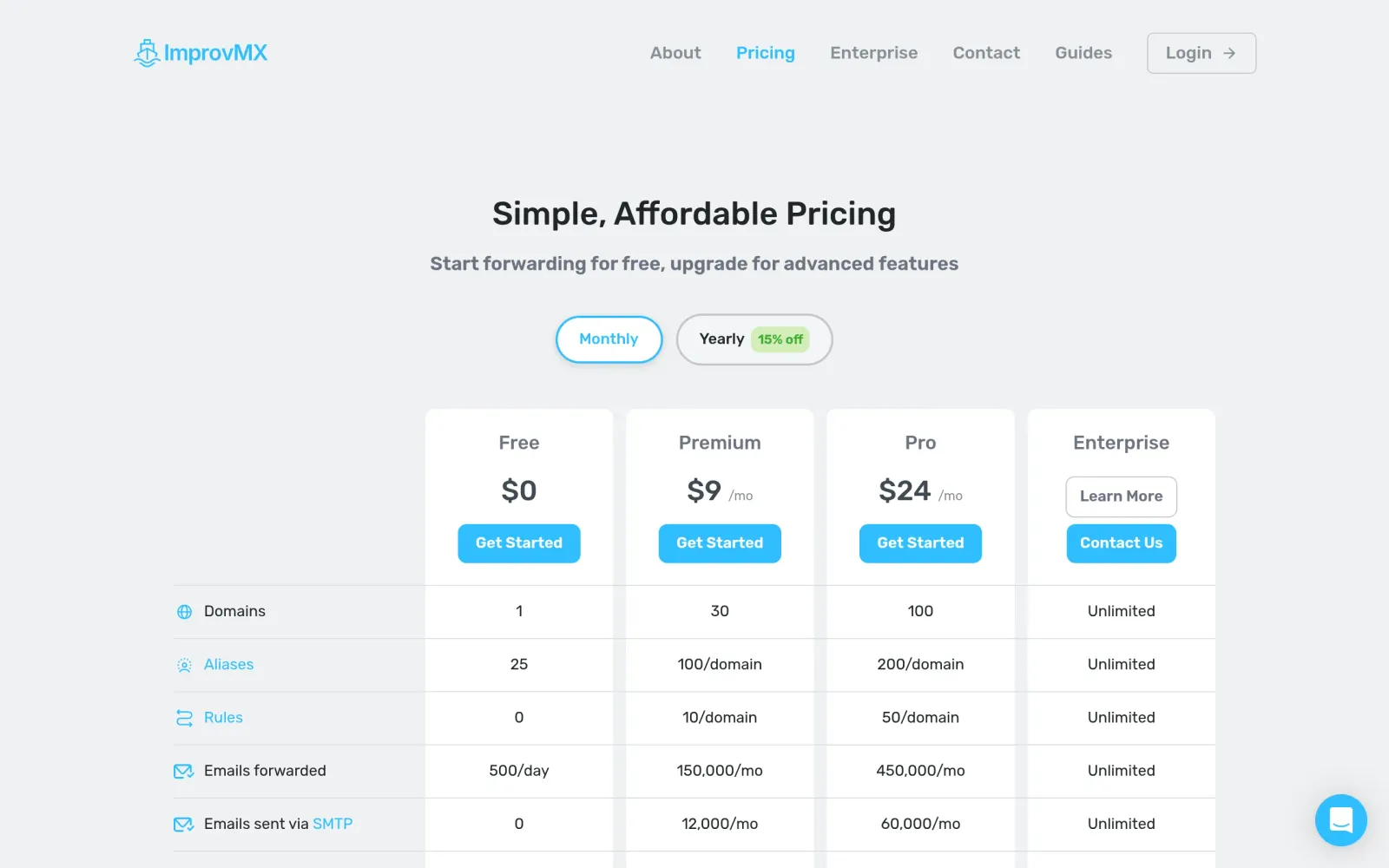
| Free tier includes | What it means |
|---|---|
| 1 domain | One domain per free account |
| 25 aliases | e.g. info@, support@, sales@… plus a default catch-all *@yourdomain.com so nothing gets missed |
| 500 forwarded emails/day | Plenty for contact forms, order notifications, and signup verifications |
| 7-day email logs | Check what was forwarded if a message goes missing |
| API access | Manage aliases programmatically |
No SMTP sending on the free tier: it's receive-only. To reply from your domain address you need a paid tier (from $9/mo) or Gmail's "Send mail as" feature using Gmail's SMTP (see Step 4).
Step 3: Add the MX and TXT records at your DNS provider
After clicking Create a free alias, ImprovMX hands you two sets of DNS records. Go to your registrar's DNS management and add them (field names vary slightly between Namecheap / Cloudflare / GoDaddy / Porkbun):
| Type | Host | Value | Priority |
|---|---|---|---|
| MX | @ | mx1.improvmx.com |
10 |
| MX | @ | mx2.improvmx.com |
20 |
| TXT | @ | v=spf1 include:spf.improvmx.com ~all |
— |
Three things to watch:
- Delete old MX records first. If the domain previously used another mail service, leftover MX records will send some mail down the old path — the classic "sometimes I get it, sometimes I don't" bug that's painful to diagnose.
- The TXT record is SPF: it tells the world that only ImprovMX's servers may handle mail for your domain, which fights spoofing and keeps you out of spam folders. A domain may have only one SPF record — if you already have a TXT starting with
v=spf1, mergeinclude:spf.improvmx.cominto it instead of creating a second one. - Wait for DNS propagation: usually 5–30 minutes, up to 48 hours depending on TTL.
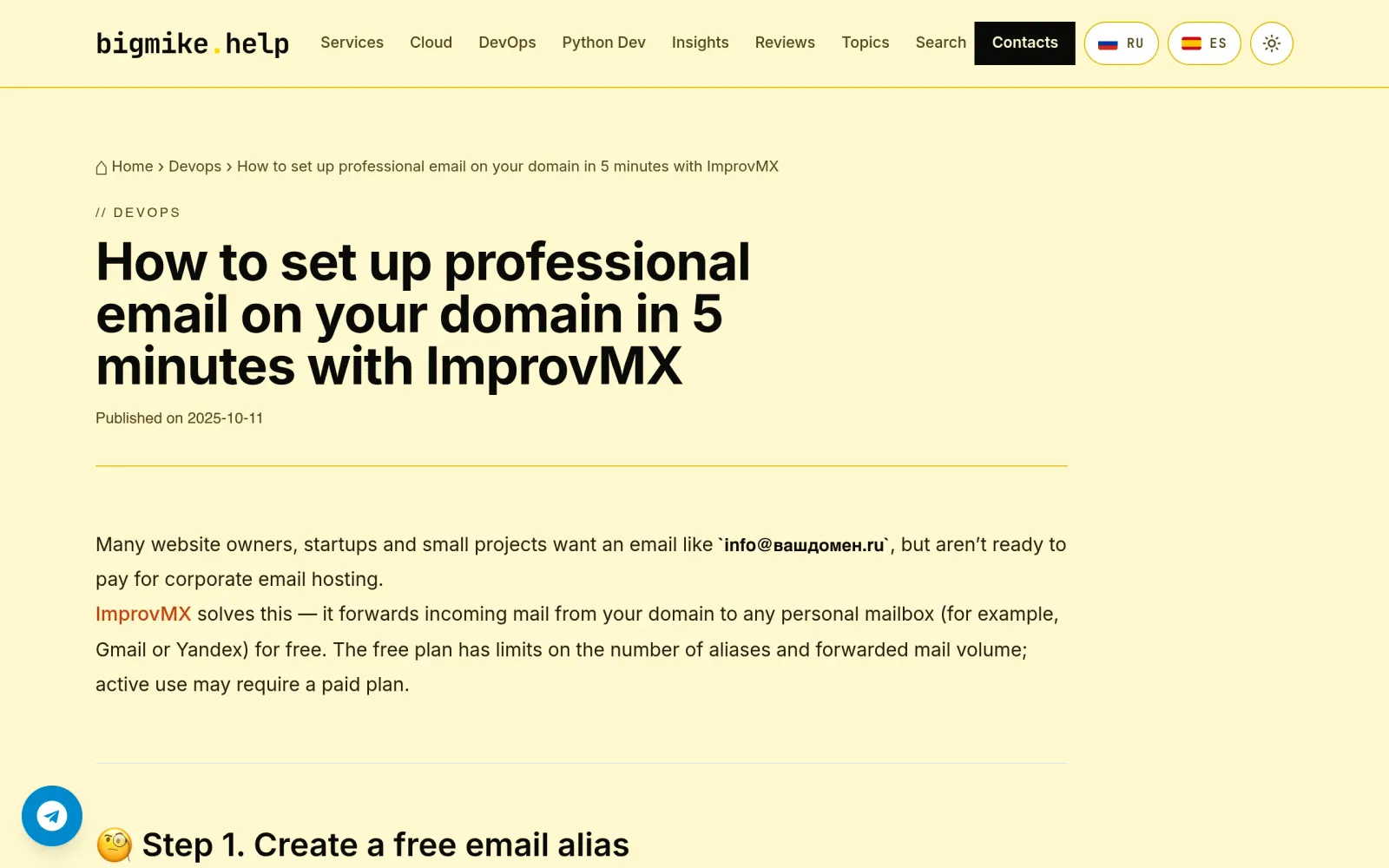
This hands-on walkthrough screenshots every step of the DNS setup if you want a visual reference:
Step 4: Verify in ImprovMX, add aliases, and send a test email
Back on the ImprovMX page, click "I've added them, check now." When you see Email forwarding active, DNS has propagated.
Then in the dashboard:
- Add aliases: e.g.
info@yourdomain.com→ your Gmail;support@→ another inbox. One alias can forward to multiple destinations. - Keep or drop the catch-all: the default
*@yourdomain.comwildcard catches mail to any typo'd address. Great for never missing anything; the tradeoff is more spam. Keep it, and add a Gmail filter to label it. - Send a test email: from a different account, email
info@yourdomain.comand confirm it lands in your Gmail within seconds to minutes.
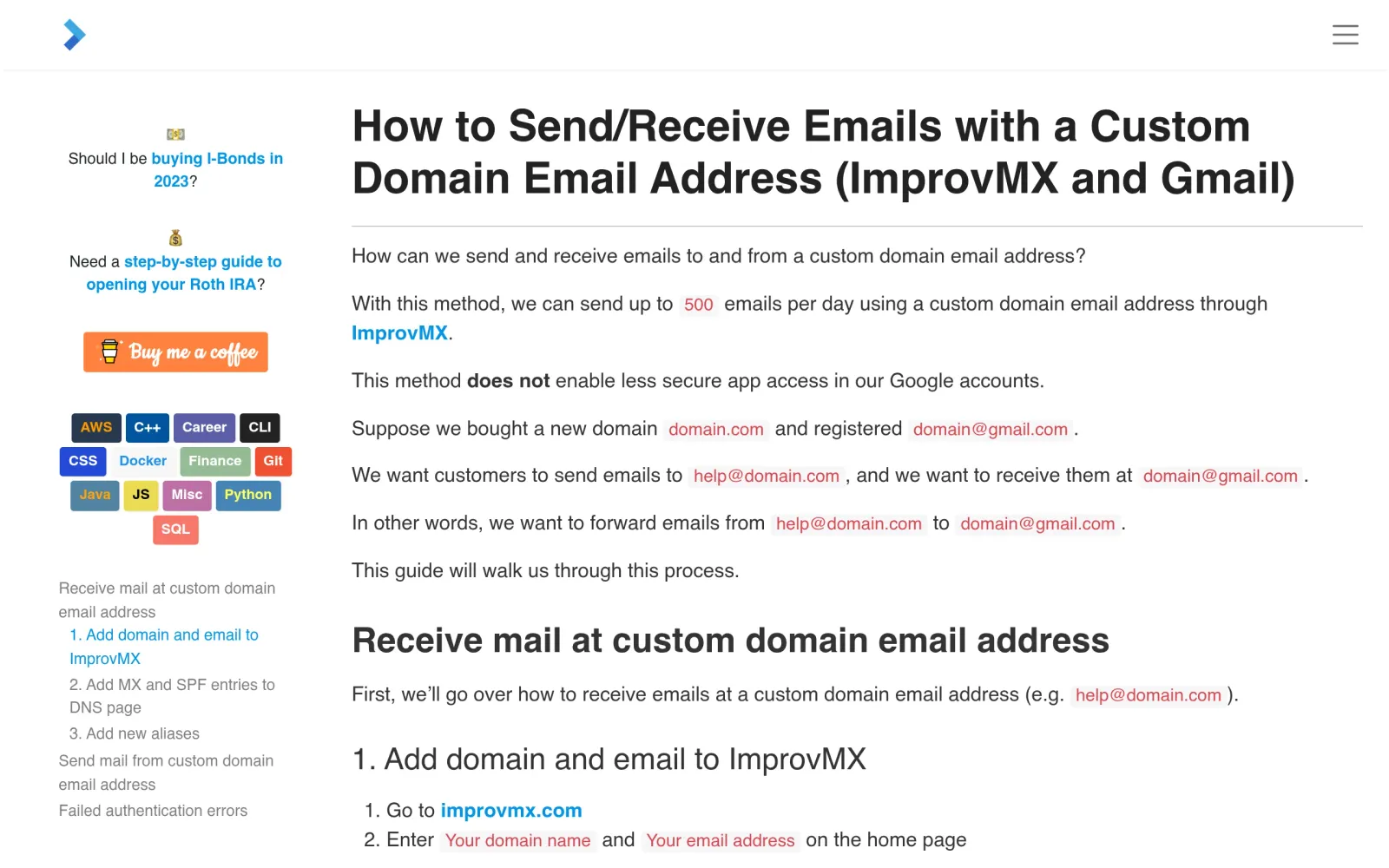
To reply from your domain address, add it under Gmail Settings → Accounts and Import → "Send mail as," using Gmail's SMTP (recipients see your domain address, though headers may show it was sent via Gmail — acceptable for most, but not for everyone). This tutorial covers the full ImprovMX + Gmail combo:
Costs, Gotchas, and How It Compares
Cost: free tier is $0, no card required. Paid tiers if you outgrow it: Premium $9/mo (30 domains, 100 aliases/domain, 150k forwards/mo, 12k SMTP sends/mo), Pro $24/mo, Light $50/yr (5 domains). For personal projects and small-business inboxes, free is enough for a long time.
How it differs from similar free options:
- Cloudflare Email Routing (free, up to 200 aliases): requires moving your DNS to Cloudflare. If your DNS lives elsewhere and you'd rather not migrate, ImprovMX is less friction.
- Zoho Mail (free): a real mailbox with inbox, sending, and 5 GB storage — pick it if you need an actual email account rather than just forwarding.
- Forward Email (free): unlimited domains and unlimited forwarding volume — more generous, but no visual dashboard (config-file driven). ImprovMX has a proper web panel plus API, friendlier for beginners.
Gotchas:
- Forwarded mail occasionally lands in Gmail spam. Real-user reports (Reclaim Hosting forum, Aug 2025) describe all ImprovMX forwards going to Gmail spam. ImprovMX applies SRS (sender rewriting) on all tiers to help SPF pass, but forwarded mail still looks "rewritten" to Gmail's filters. Mitigations: get SPF right, create a Gmail filter "Never send to spam" for your domain addresses, and whitelist important senders.
- 500 forwards/day is a hard cap. Fine for contact forms and verification emails; don't use it for newsletters — that's a paid use case.
- No mailbox, no storage. ImprovMX deletes mail after forwarding (a privacy plus). Archiving is your destination inbox's job.
- You must own a domain. No domain, no service — same as every other domain-email option.
Track record check: ImprovMX has operated since around 2015. No shutdowns, mass bans, or quiet paywalling of the free tier found; GDPR compliant; "forever free" wording stable on the pricing page. Risk: low.
Sources
- ImprovMX official pricing (free tier verified 2026-10-24: 1 domain / 25 aliases / 500 forwards/day / 7-day logs): https://improvmx.com/pricing/
- bigmike.help hands-on tutorial, "How to set up professional email on your domain in 5 minutes with ImprovMX" (published 2025-10-11; DNS table cross-checked against official values): https://bigmike.help/en/devops/how-to-set-up-professional-email-on-your-domain-in-5-minutes-with-improvmx/
- logfetch, "How to Send/Receive Emails with a Custom Domain Email Address (ImprovMX and Gmail)" (MX/TXT steps cross-verified with is-a.dev docs): https://logfetch.com/send-receive-mail-custom-domain-email-address/
- is-a.dev official docs, ImprovMX chapter (MX: mx1/mx2.improvmx.com; TXT: v=spf1 include:spf.improvmx.com ~all): https://git.amit.is-a.dev/is-a-dev-docs/file/src/guides/improvmx.md.html
- Reclaim Hosting forum user report (2025-08-03, Gmail spam-folder issue; thread auto-closed 2026-08-03): https://forums.reclaimhosting.com/t/improvmx-works-for-email-forwarding/6078
- 2026 third-party comparisons cross-checking free-tier numbers (gridinbox, review42 Jul 2026, emailalias.io): https://www.gridinbox.com/blog-email-forwarding-alternatives / https://resources.review42.com/how-to-create-your-own-email-domain-free/ / https://emailalias.io/blog/improvmx-alternative/
Unverified: per the read-only research rule no ImprovMX account was created, so the in-dashboard display of free-tier alias quota is unverified (the pricing-page numbers are verified). DNS record values were cross-verified across three independent sources.