
Self-Host OpenClaw in Docker: Your Free 24/7 AI Agent on WhatsApp and Telegram
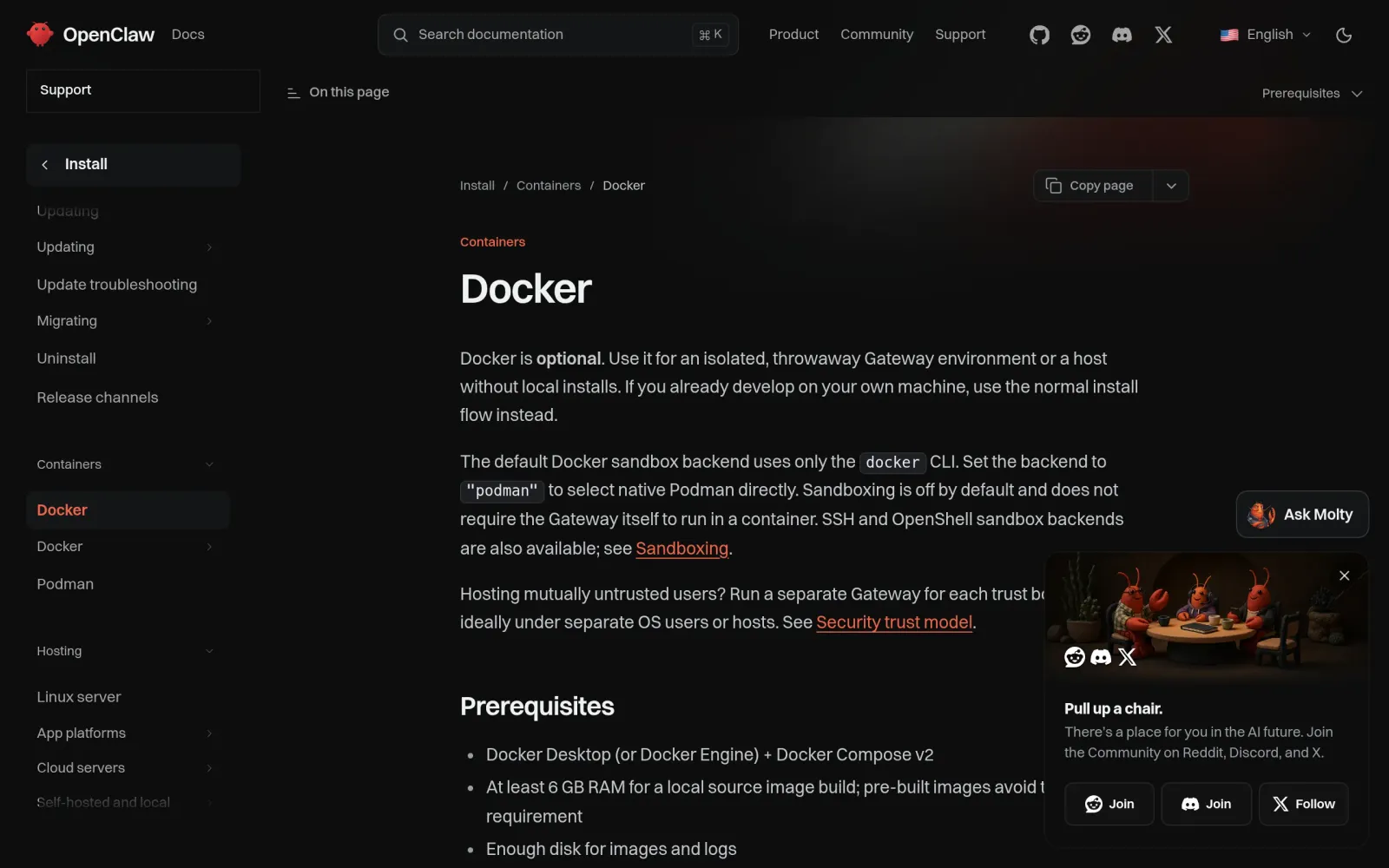
One-line summary: An October 23, 2026 walkthrough shows the full path: Docker plus the official setup script brings up an OpenClaw gateway, your phone opens its dashboard over your home Wi-Fi, and Telegram connects fastest — but the safety rules come first: LAN only, no port forwarding, or don't publish this one at all.
What You Need
- A computer (the walkthrough below uses Windows + Docker Desktop + Debian WSL; macOS and Linux follow the same setup script in the official Docker docs)
- Docker Desktop (or Docker Engine) + Docker Compose v2; at least 2GB of RAM for the image build
- A model API key, or local Ollama / LM Studio for a zero-model-cost path
- No overseas bank account, no travel — everything is done online
Step 1: Install Docker and Confirm the Engine and Compose Both Work
Install Docker Desktop for Windows, open it, and wait for the engine to run. In Docker Desktop, go to Settings → Resources → WSL Integration and enable Debian. In Debian, confirm:
docker --version
docker compose version
Both commands must print version info. The official docs are explicit: Docker is optional — use it only if you want a containerized gateway or to validate the Docker flow; for the fastest loop on your own machine, the official docs have a regular install flow instead.
Step 2: Clone the Repo, Run setup.sh, Open the Dashboard
In Debian, install git and curl, clone the official repo, and run the official setup script (the October 23, 2026 walkthrough, cross-checked against the official docs):
sudo apt update
sudo apt install -y git curl
cd ~
git clone https://github.com/openclaw/openclaw.git openclaw-install
cd ~/openclaw-install
chmod +x scripts/docker/setup.sh
./scripts/docker/setup.sh
Follow the onboarding prompts to configure your AI provider and authentication. The script generates the Gateway token and starts the Compose services. Test on the same machine first:
http://127.0.0.1:18789/
If the dashboard opens and the token logs you in, the install worked. Guard the Gateway token like a password. Config persists on the host at ~/.openclaw/ and ~/.openclaw/workspace; health endpoints are http://127.0.0.1:18789/healthz and /readyz.
Step 3: Open the Dashboard to Your LAN So Your Phone Can Reach It
The setup script binds the Gateway to lan by default, so LAN devices can connect — but two gates stand in the way (walkthrough steps 4–7):
- In Windows PowerShell, run
ipconfigand note your active Wi-Fi adapter's IPv4 address (e.g.192.168.1.25— use your own real address); - In Debian, run
docker compose psand confirm port 18789 is actually published by the Gateway container. If the mapping is restricted to127.0.0.1, LAN devices can't connect — inspect the 18789 section of your Compose file before changing it, and don't replace the whole file or strip authentication; - In admin PowerShell, add a firewall rule restricted to the Private network profile:
New-NetFirewallRule `
  -DisplayName "OpenClaw LAN Dashboard" `
  -Direction Inbound `
  -Protocol TCP `
  -LocalPort 18789 `
  -Profile Private `
  -Action Allow
Only do this if your home network is marked Private in Windows. Then, from a phone, tablet, or second computer on the same home Wi-Fi, open http://<your-Windows-IP>:18789/ and log in with the Gateway token.
Hard rule: no router port forwarding. For access outside your home, use a private VPN such as Tailscale — never expose port 18789 to the public internet. On the LAN it is unencrypted HTTP, so only use it on a trusted home network.
Step 4: Connect Telegram / WhatsApp, Pick the Zero-Model-Cost Path (Optional)
- Telegram is the fastest channel: it only needs a bot token; WhatsApp needs QR pairing. Treat the exact Docker commands as second-hand documentation — the Docker command quoted in second-hand guides is
docker compose run --rm openclaw-cli channels add --channel telegram --token "<token>", but it was not confirmed in the main official Docker page, so re-check the command and token field names in the official Channels docs before running it. - Zero-model-cost path: Inside Docker, reach host-side local models via
host.docker.internal— Ollama athttp://host.docker.internal:11434, LM Studio athttp://host.docker.internal:1234(confirmed in the official docs). Host services must listen on a reachable address. Don't claim any specific Ollama model "runs smoothly on a 2GB machine" — model size and memory needs are per Ollama's official guidance (unverified here). - Prebuilt image branch (if you don't want to build locally): image
ghcr.io/openclaw/openclaw, port example127.0.0.1:18789:18789, token generated withopenssl rand -hex 32. Second-hand guides say 2–4GB machines can run the prebuilt image, with 6GB+ only needed when building from source.
Costs, Limits, and Pitfalls
- Cost: OpenClaw itself is free and open source (MIT), with no paid tier or hosted service of its own. Your only cost is the model API calls you choose; local models make model cost zero. Don't present model API bills as OpenClaw charging you.
- The security history is real — this is not plug-and-play: CVE-2026-25253 (CVSS 8.8) was disclosed in February 2026, and Cyera published a four-vulnerability "Claw Chain." The official docs also note sandboxing is off by default and the Docker sandbox must be enabled separately. Hard requirements: 18789 on LAN / 127.0.0.1 only, no public port forwarding, guard the Gateway token, install only skills and plugins whose source you've read, run the latest version, start with minimum-permission directories before widening access.
- Old tutorials are outdated: The project renamed from Clawdbot (November 2025) to Moltbot (January 27, 2026) to OpenClaw (after January 30, 2026). Don't copy clawdbot / moltbot commands from old posts.
- The Windows + WSL + LAN chain is not independently verified: This article is based on text research and page reads, not a live Docker run. The walkthrough's LAN steps match the official docs'
landefault, but "it will definitely work behind your router and firewall" is not guaranteed — checkdocker compose psfor the 18789 mapping yourself. - Don't pin versions or star counts: The latest release may already be newer than anything cited here — check the GitHub Releases page when you install. Second-hand star counts disagree with each other, so this article states none.
- Docker Desktop's free commercial terms were not checked: Don't claim Docker Desktop is free for everyone forever.
- Alternatives noted, not recommended: OpenAI AgentKit is described in a 2026 guide as free to design but billed on model and storage at runtime, and the same guide says Agent Builder sunsets after November 30, 2026 — a dying product, not a long-term free pick. Google ADK 2.0 needs a Gemini API key, and production deployment via Cloud Run or Vertex AI incurs cost — not end-to-end zero cost.
Sources
- October 23, 2026 walkthrough (Medium, Rotblox): https://medium.com/@rotblox8/setup-docker-with-openclaw-4a58fec65d1d
- OpenClaw official Docker docs: https://docs.openclaw.ai/install/docker
- OpenClaw explainer (second-hand, ~2026-10-11): https://www.jahanzaib.ai/blog/what-is-openclaw-open-source-ai-agent-explained
- Channel reference pages (second-hand): https://tonia.ai/openclaw-intro.html ; https://openclaw-ai.com/en/docs/install/docker
- Security disclosures: https://www.privacy.com/blog/is-openclaw-safe-ai-agent-access ; https://www.cyera.com/blog/claw-chain-cyera-research-unveil-four-chainable-vulnerabilities-in-openclaw
- Alternative notes: https://binaryverseai.com/agentkit-guide-pricing-access-build-setup/ ; https://medium.com/@ameniselmi1925/googles-agent-development-kit-adk-2-0-build-ai-agents-as-graphs-8fdcbd9d9978