
Cloudflare Email Routing: A Free Custom-Domain Email Address, With No Mailbox Attached
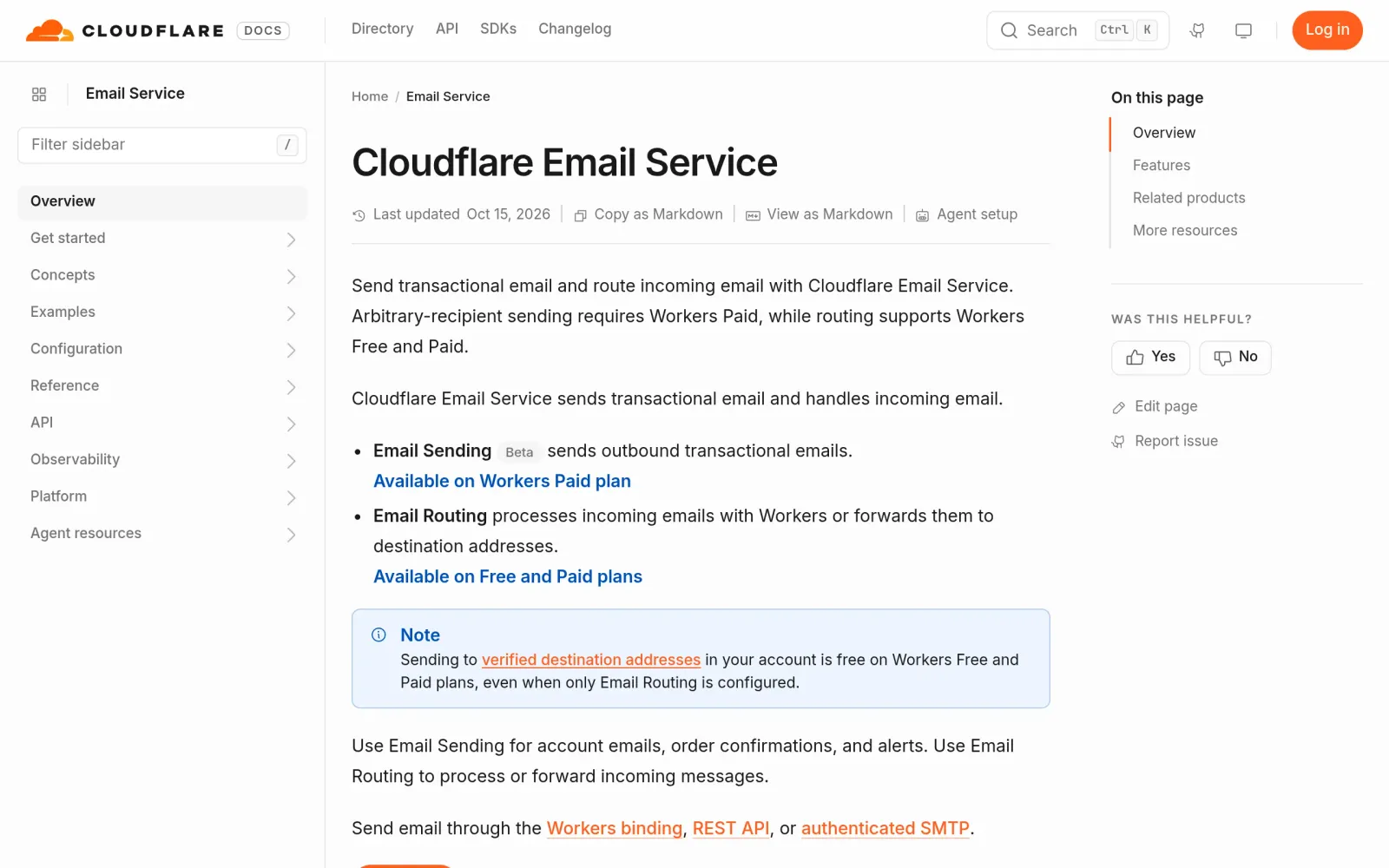
One-line takeaway: If you own a domain but have no email budget, Cloudflare Email Routing gives you you@yourdomain.com for $0 — mail sent to your domain is forwarded to the inbox you already read. It takes about ten minutes to set up, but it is a forwarder, not a mailbox: there is no inbox, no storage, and no way to send from it on its own. Know those two limits before you start.
What you need
- A domain you own (any registrar)
- That domain's DNS hosted on Cloudflare (the free plan is enough); if it is not there yet, add the domain to Cloudflare and point your registrar's nameservers at the pair Cloudflare gives you, then wait for DNS to propagate
- An inbox you already read (Gmail, Outlook, Yahoo — any provider) to use as the forwarding destination; you must be able to click a verification link in it
- The expectation that this setup only solves receiving mail — sending needs a separate channel (see Step 4)
Steps
Step 1: Read the official docs and pin down what Email Routing actually is
Open Cloudflare's Email Routing documentation first and note its positioning: it takes over your domain's MX records and forwards mail addressed to your domain to an address you have verified. It stores nothing, provides no separate inbox and no webmail — the mail ends up stored in your Gmail. It is free on every plan, including Free. Remember this positioning and every later "where is my inbox?" question answers itself.
Step 2: Walk the full flow from a hands-on tutorial — verify the destination, enable routing, add the DNS records
Following hands-on tutorials updated in October 2026, the full flow has four parts:
- Verify the destination address. In the Cloudflare dashboard, go to Email (in the current dashboard: Compute → Email Service → Email Routing) → Destination Addresses → Add, and enter the inbox you already read. Cloudflare emails it a verification link; click it. The row must read Verified before anything works — rules pointing at an unverified address stay disabled.
- Enable routing and add the DNS records. On the same domain, click "Add missing records" / "Add records and enable". Cloudflare writes and locks three MX records (
route1.mx.cloudflare.net,route2.mx.cloudflare.net,route3.mx.cloudflare.net) and one SPF record (v=spf1 include:_spf.mx.cloudflare.net ~all). Locked records cannot be edited on the DNS page until you unlock them in the Email Routing settings — that is a guard against accidental breakage, not a bug. - Create the forwarding rule. Routing rules → Create routing rule: set the local part to
hello(orcontact,support— your choice), the action to Send to an email, and the destination to the verified inbox. Save; the rule must show Active. - Decide the catch-all. The catch-all governs every other local part with no rule. Set to Send to an email, it forwards everything, including typos like
ifno@; set to Drop, it discards them silently. For personal use, start with Drop and change it only when you genuinely need "every address works".
Then send yourself a test message to hello@yourdomain.com and confirm it lands in the destination inbox within seconds. If it does not, check the Email Routing Activity Log, which records each message's outcome (Forwarded, Dropped, Rejected, or Delivery failed) — faster than guessing.
Step 3: Check the three hard limits before a customer email goes missing
Per hands-on write-ups from October 2026, Email Routing has three hard limits:
- It cannot store mail. There is no mailbox. If the destination files a message as spam, Cloudflare holds no copy; the dashboard only keeps the Activity Log and daily forwarded/dropped counts.
- One rule serves one person. A rule maps one address to one destination. Getting the same mail to two people requires an Email Worker calling
forward()twice — beyond the scope of a zero-code free forwarder, and not covered here. - It cannot reply as your domain. A reply sent from the destination inbox goes out from that provider's address, not your domain address. Sending from your domain needs a separate sending channel — see Step 4.
One conflict warning: if your domain already has MX records from another mail provider (Zoho, Google Workspace), Cloudflare flags the conflict and offers to replace them. Confirm there is no mail left to collect on the old provider before replacing, or old mail stops arriving outright.
Step 4: Pick a sending channel — Gmail's SMTP works, but DMARC will not align; SMTP2GO aligns it
Receiving is free; the hard part is sending from your domain address. Two routes, by how strict you are:
- The easy route: Gmail's own SMTP. In Gmail settings, add the option to send from your domain address via Google's SMTP server. It works, and recipients see your domain in the From field — but SPF/DKIM authenticate as Google's domain, so DMARC does not align. Fine for personal mail; shaky for support mail you cannot afford to lose to spam folders.
- The strict route: a sending service such as SMTP2GO. Sending through it lets SPF and DKIM align with your own domain, so DMARC can genuinely pass. The cost is one more account and usage-based pricing (free allowances vary by provider; small volumes usually fit, check the pricing page when you sign up).
Note: Cloudflare also has an Email Sending service, but it is still in beta, and sending to arbitrary recipients requires a Workers Paid plan — do not confuse it with the free Email Routing forwarder.
Notes, costs, and pitfalls
- Cost: Email Routing itself is $0 on Cloudflare's free plan; the only thing you pay for is the domain's annual fee. Sending via Gmail SMTP is $0; sending via SMTP2GO follows its plan.
- Track record: Cloudflare Email Routing has no public record of mass bans, surprise charges, or sudden shutdowns; it is a standing feature of the free plan, not a limited-time offer. But the free plan is sized for personal and small sites — do not use it as a bulk-mail or ticket-system intake.
- Pitfalls: ① Rules pointing at an unverified destination never fire — check Verified status first. ② A domain may have only one SPF record; if one already exists, merge
include:_spf.mx.cloudflare.netinto it instead of adding a second. ③ If mail does not arrive right after adding MX records, a resolver may have cached the earlier "no MX" negative answer; the zone's SOA minimum TTL defaults to 1800 seconds (30 minutes), so wait half an hour and retest. ④ When replying to customers, remember to switch the sender, or they will see your private Gmail address.
Sources
- Cloudflare Email Routing documentation: https://developers.cloudflare.com/email-routing/
- October 2026 hands-on tutorial (four-step flow, MX/SPF record values): https://hackernoon.com/set-up-free-email-forwarding-for-your-domain-with-cloudflare-email-routing
- October 2026 hands-on write-up (3 limits, destination verification, Activity Log): https://dev.to/howardzlh/cloudflare-email-routing-support-address-setup-and-3-limits-35ph
- Gmail sending + SMTP2GO DMARC alignment comparison (July 2026): https://explosive.cloud/free-custom-domain-email-cloudflare-gmail-smtp2go/
- Cloudflare plans page (free plan notes): https://www.cloudflare.com/plans/